
Wix

Wix is a free online application that allows users to create their own website and mobile sites. Wix is recognised as one of the leading applications when it comes to free website design. It’s simple to use interface and large database of templates makes it suitable for those with the most basic tech skills. It uses a “what you see is what you get” model which means users don’t need to have knowledge of code or markup languages. However, people who have such knowledge will be able to make use of it if they want. For example, users can engage in HTML scripting through the app’s graphical user interface. The key features of WIX are listed below:

  • Customizable designs
  • Designer-made templates
  • Multi-platform support
  • Drag and drop editor
  • Free domain hosting

This semester I’ve had the chance to try out Wix for myself. Currently I’m designing an e-portfolio that will showcase the skills and different projects I’ve completed. By the end of it I’ll have a comprehensive resource that I can use to show future employers. As I’ve already designed an e-portfolio using WIX I decided I would try my hand at it again. I had a very pleasant experience using it last year, so it makes sense to use it again. I can also look back on that experience to see what changes or improvements I will need to make this time around. One thing that springs to mind is to focus equally on the content and design of the resource. Last year I think I focused far too much on the design of the website. I became obsessed with creating an aesthetically pleasing site and failed to dedicate as much time to designing the actual content of the site. I will need to create four artifacts that showcase the skills I’ve learned this year. While the appearance of the website is undoubtedly important, employers will be paying closer attention to the artifacts to see what sort of projects I’ve completed. I also think I’m in much better shape now to design a website due to the knowledge I’ve gained on usability. Last year when designing the website, I had no knowledge of what usability was. I designed the site for myself instead of taking into account the target audience. This time around I’ll be able to ensure the site is usable and accessible to everyone. Also, for anyone looking to create their own website on WIX I urge you to check out the video below!

Audacity

Audacity is a free online digital audio editor and recorder used to create podcasts. It can be downloaded Windows, macOS and Linux operating systems. Some of Audacity’s key features include:

  • Recording and playing back sounds
  • Audio editing
  • Cross platform operation
  • Multi-track mixing
  • Importing and exporting of audio files

Last semester I had the opportunity to use Audacity and see was the hype justified. The reasoning behind me using Audacity was that I had to create an instructional podcast for a college module. I decided to create a podcast that would educate listeners on concussion in sport. I had an abundance of personal experiences with concussion so I felt my podcast was badly needed. When hearing for the first time that I would be creating a podcast, I wasn’t at all worried about it. I thought it would be relatively straightforward and that the theory behind designing it would be the only challenging aspect. While designing the podcast based on instructional design theories was challenging, the podcasting element proved tougher than expected. I had envisaged that I would be able to use my phone to record the podcast. The next step would then be to upload the podcast to audacity and job done! I’m not ashamed to say I was wrong though. Initially I recorded the podcast on my phone, but the results were not satisfactory. The sound quality was quite rough around the edges and the volume wasn’t loud enough. After much reluctance I then decided to buy a microphone to record the podcast. And while the microphone did improve the sound quality slightly, it was still fairly poor. After trying multiple times to get a clear recording I gave up. The microphone was not capable of recording quality audio so I just decided I’d have to make do with the best recording out of a bad bunch. This is where Audacity would come into play. I had watched a number of tutorials on Youtube about how to get the best out of Audacity. I began working on the recording and tried to improve the sound quality ever so slightly. With the help of effects like the equalizer I was able to balance the sound and stop the random jumps in volume. I was also able to remove any background noises that I didn’t want such as a door closing. This was made possible with the noise removal tool. And while these tools did take plenty of playing around with, they were relatively easy to use. In the end I was left with an improved version of the initial recording, although it was still worse than I wanted it to be. One thing is for sure though, had it not been for the highly usable nature of audacity, it would have been a whole lot worse! 

Upon reflection I’m very satisfied with my experience of using Audacity. It’s very easy to use and there a loads of helpful tutorials available online. If I was to do the whole podcast assignment again I’d invest in a better microphone. In terms of Audacity however I don’t think I’d change a whole lot. Audacity is regarded as the leader in its field for a reason, and I can certainly vouch for that. I should also direct your attention to the youtube tutorial below. It made my experience with Audacity a positive one when it could have been negative!

Adobe Animate

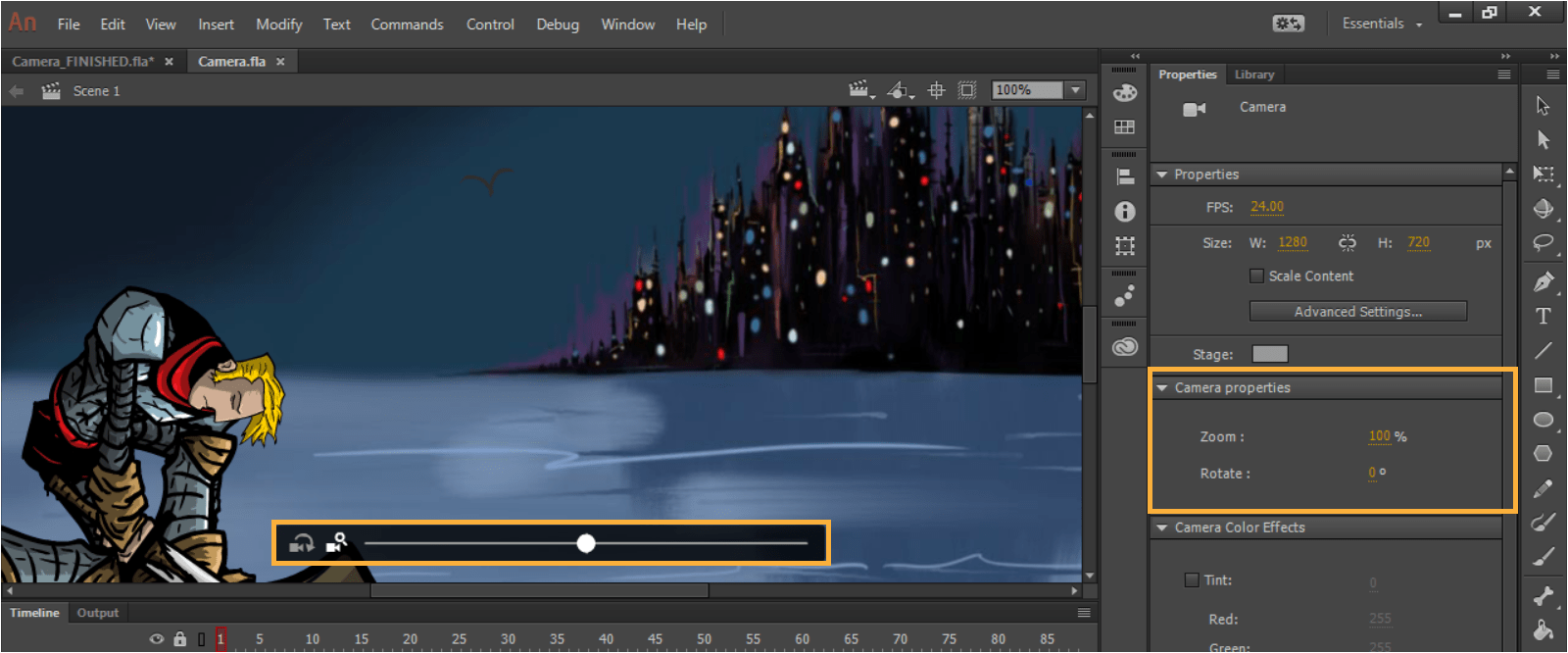
Adobe Animate is a computer program used to create animations. Animate is most commonly used to create animations for television programs, websites, video games and applications. These animations can be published for HTML5, WebGL and Flash player to name but a few. Adobe Flash used to be the main program for creating animations but it underwent a name change in 2016 where it became known as Animate.

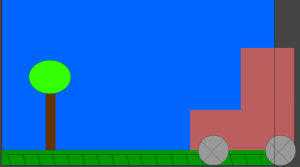
 Interestingly, I had the chance to try out this piece of software for myself last week. For my interactive courseware module in college I’ve been tasked with creating a digital learning resource. I’ve opted to create an online e-learning course to help DJ’s configure their music equipment. In order to make this digital resource more functional it will require some incorporation of animations. We were therefore given a workshop in how to use Adobe Animate so we could create the best digital resource possible. Although I wasn’t able to attend the workshop myself, the lab sheets were posted online so I could try them out in my spare time. In the lab sheets I learned about some of the benefits of using Adobe Animate and some of it’s key features. I was provided with instructions on how to manipulate layers, and import images and animated movies. I also learned how to create a very basic animation of a train driving on train tracks. To do so I was able to draw on the screen to create what was essentially a 2D painting. I was able to use shapes to create things like trees and the train itself. I made use of keyframes in order to rotate the wheels on the train. When animated these wheels started moving. Subsequently I was able to drag the train across the screen while the wheels were moving to essentially create an animation. Although I was able to complete the labsheet with relative ease I’m unsure if id be able to make my own animations without such instructions. It’s going to take plenty of getting used to but I hope youtube will have some useful tutorials. Being able to create my own animations will allow my digital resource to appear more professional and will add to the learning experience. Below is a screenshot of the simple animation I created!!

Articulate Storyline

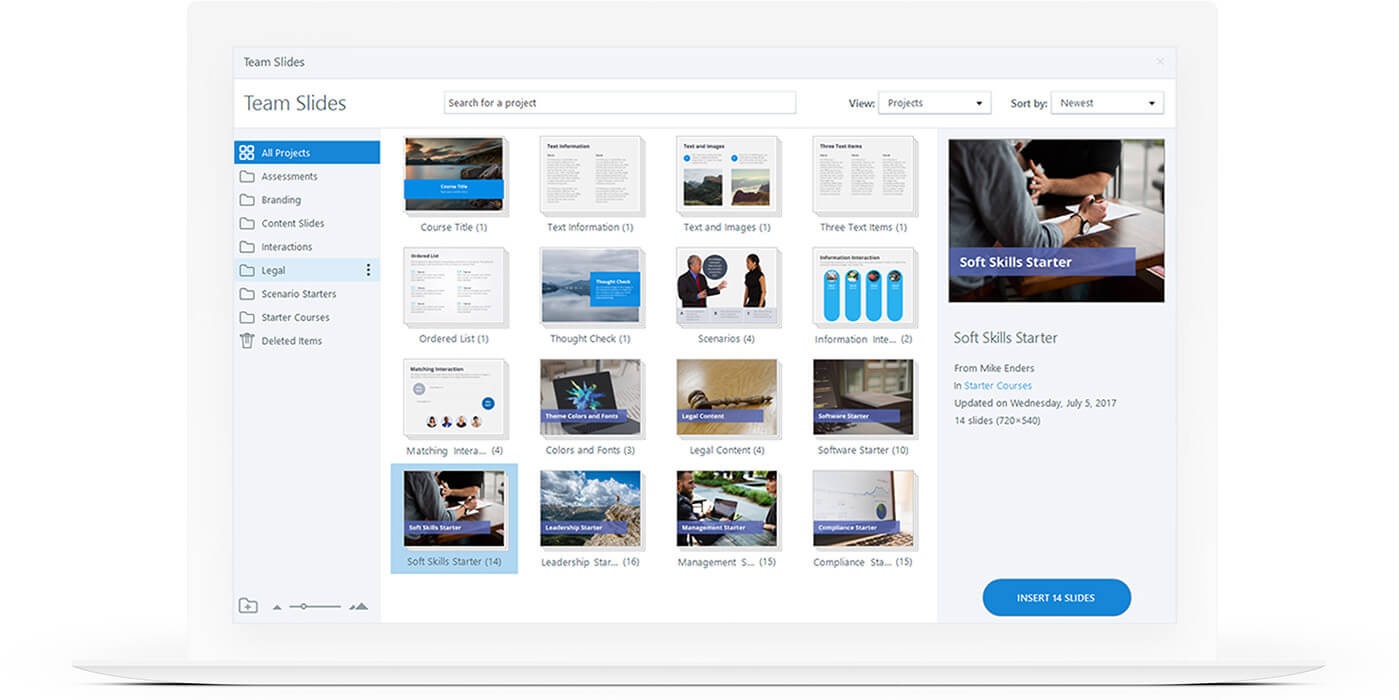
Articulate Storyline is an authoring tool used to create online e-learning courses. It allows users to create e-learning courses which can be delivered to a number of devices. It makes use of a block editing format where users fill blocks with content and connect them to each other. 

Key features of Articulate Storyline include: 

  • Audio-animation synchronization 
  • Closed Captioning 
  • Slide Layers 
  • Multi device compatibility
  • HTML5 and CSS3 support

Recently I’ve had the opportunity to become acquainted with this software. As part of my coursework for a college module I’m expected to create a digital learning resource. While we’ve been given the option to use any software of our choice, I’ve decided to choose Storyline. A major reason behind this choice is that our course were given a workshop in how to use Adobe Articulate. Speakers visited us from a company called Novitas and delivered a presentation that showed the uses of  Articulate.  Storyline was one of the applications talked about in this presentation and I got a good idea of what it was about. I learned about its key features and how these could be used to create high quality e-learning courses. I therefore decided that it would be best to use Storyline, as there is no point trying to learn another software package that I know nothing about. It also seems that most jobs in e-learning require some knowledge of  articulate. If I am to get a job in the field of e-learning in a few months time it’s essential that I learn how to use it. It will also look good if I can produce an example of an e-learning course created with articulate. At the end of the semester I will be creating an e-portfolio that I can show to future employers. Therefore using adobe articulate will benefit both my college grades and career opportunities. They sound like pretty good reasons for becoming an articulate master!

MadCap Flare

Madcap Flare is an authoring tool used to create documentation for online help, user manuals, software documentation, and other content. It’s a versatile software tool that allows documents to be published in a range of formats such as pdf, online, word and mobile. Key features of madcap flare include:

-XML editing

-Multi-Channel publishing

-Single-sourcing and integrated cloud based editing

– Publishing Project and content management

Recently I’ve had the opportunity to try this software out for myself. In one of my weekly labs for a college module, I was given an introduction to MadCap Flare. I learned all about it’s key features and potential uses, and I even got to use the software itself. I was able to try my hand at creating a project and building targets. Although I’ve used a number of software programs while studying in college, I still found it quite difficult using the MadCap software. I’ve always struggled to grasp markup languages like HTML and CSS. Seeing new markup languages such as XML and a range of new concepts gave me quite the headache.

Despite all this, I’m looking forward to getting to grips with the software. At the end of the semester I’ll have to create my own e-book, so it’s crucial that I practice using the software. I’ll also need to have proficiency using MadCap Flare if I hope to have a career in Technical Writing. Many employers look for applicants to have experience creating technical documents with software packages.

As a result it’s safe to say that I will be binge-watching Youtube tutorials like this in the hope that I can gain some level of proficiency! Hopefully by the end of semester I’ll be able to report back here with an update on my experience.

reflective Learning Blog

A Reflective Approach to Learning Experiences

Ryan Lanz

Fantasy Author

College Life

A Lot More Than Just Studying

TWO WRITING TEACHERS

A meeting place for a world of reflective writers.

ethanknewmedia

Writing for New Media

The Daily Post

The Art and Craft of Blogging

WordPress.com News

The latest news on WordPress.com and the WordPress community.

reflective Learning Blog

A Reflective Approach to Learning Experiences

Ryan Lanz

Fantasy Author

College Life

A Lot More Than Just Studying

TWO WRITING TEACHERS

A meeting place for a world of reflective writers.

ethanknewmedia

Writing for New Media

The Daily Post

The Art and Craft of Blogging

WordPress.com News

The latest news on WordPress.com and the WordPress community.

Design a site like this with WordPress.com
Get started